TIFF To RAW Converter
Convert your TIFF images to RAW format (headerless RGBA pixel data).
Drag & Drop TIFF files here
or
Import a TIFF image directly from a public URL, Google Drive, or Dropbox.
Max file size: 100MB
ℹ️ RAW files contain headerless RGBA pixel data. You will need the image dimensions to interpret them.
Your images are processed securely. No files are uploaded or stored on our servers.
Convert TIFF to RAW online to bring your TIFF (Tagged Image File Format) images into RAW-compatible containers for professional editing pipelines. This tool wraps your processed TIFF image into camera-style RAW formats such as CR2, NEF, ARW, DNG, and others - useful for aligning TIFF assets with RAW-based editing workflows in Lightroom, Capture One, and similar tools.
Important honest note: this creates a simulated 16-bit RGB container, not authentic camera sensor data. A TIFF is already processed, so the output cannot recover the dynamic range of a true camera RAW. Always keep your original RAW masters. If you need the reverse direction, use our RAW to TIFF converter. For a standard image, try TIFF to JPG, or shrink files with our TIFF compressor.
Lightning Fast
Convert images in seconds with our optimized engine that runs entirely in your browser - no uploads, no waiting.
Privacy First
No account needed. No data uploaded to servers. Your files stay on your device, processed locally in your browser.
Batch Processing
Convert multiple TIFF images at once with a single click. Download results individually or as a ZIP archive.
Pro Quality
Professional-grade conversion engine that handles large TIFF files reliably with accurate color and detail.
How It Works
Convert your TIFF images to RAW in 4 simple steps. No sign-up required, no software to install.
Upload Your Images
Click to select or drag and drop your TIFF files. You can also import from URL, Google Drive, or Dropbox.
Choose Settings
Pick RAW as your output format and adjust any available options to match your needs before converting.
Convert Instantly
Processing happens entirely in your browser. No uploads, no server-side processing. 100% local and private.
Download Results
Get your converted RAW files individually or download all at once as a ZIP file. Ready in seconds.
Same Image, Different Format
Our converter preserves your image faithfully. Move your cursor across the image to compare - the visual output stays the same. Only the format changes.
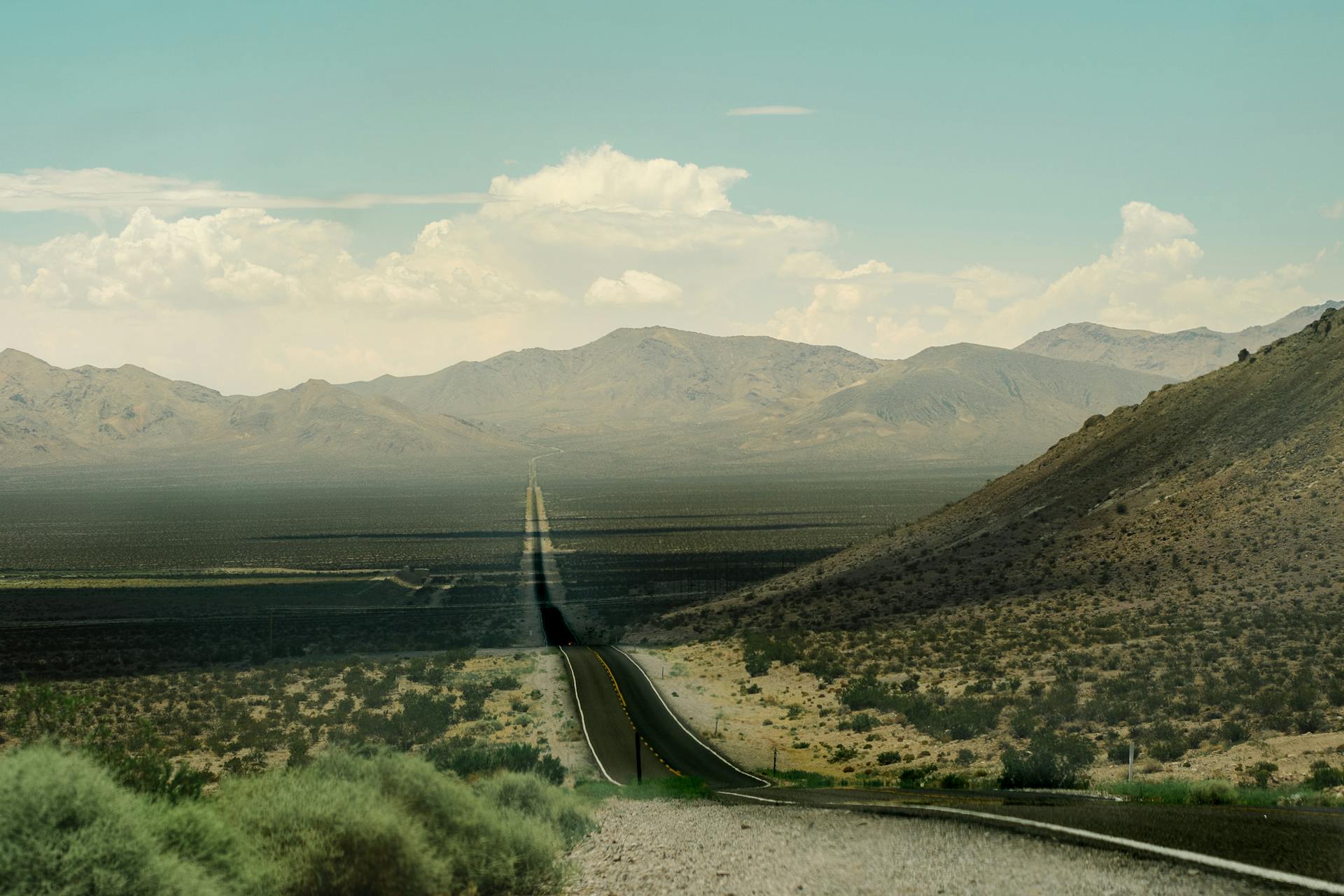
Converting TIFF to RAW wraps your processed image in a simulated 16-bit container for pipeline compatibility. It is not authentic camera sensor data and cannot recover true RAW dynamic range - always keep your original RAW masters.
Convert TIFF to RAW Online - Free & Professional
Easily wrap your TIFF images into a camera-style RAW container - right in your browser. TIFF is a fully processed professional raster format, while RAW formats store minimally processed sensor data with high bit depth. This tool produces a simulated 16-bit RAW container for pipeline compatibility - it is not authentic sensor data, since a TIFF is already processed. Always keep your original RAW masters. If you need the reverse conversion, use our RAW to TIFF converter. For a standard image, try TIFF to JPG. This free TIFF to RAW converter suits RAW-based editing and pipeline alignment.
⚖️ TIFF vs RAW - Quick Comparison
| Feature | TIFF (Tagged Image File Format) | RAW (Camera RAW Image Formats) |
|---|---|---|
| Image Processing | Fully processed | Minimally processed (camera) |
| Bit Depth | High (8/16/32-bit) | Very high (12/14-bit) |
| Edit Flexibility | Limited | ✓ Extensive (true RAW) |
| File Size | Large | ✗ Larger |
| Sensor Data | ✗ No | ✗ Simulated here |
| Best For | Print, archival, scanning | Pro RAW editing pipelines |
It is essential to understand the nature of this conversion. A genuine camera RAW file contains minimally processed sensor data with enormous dynamic range and editing latitude. A TIFF, by contrast, is already a fully processed raster image - the sensor's original data was baked in when the TIFF was created. This tool wraps your processed TIFF into a simulated 16-bit RGB container in a chosen RAW format (CR2, NEF, ARW, DNG, and more), giving you RAW-pipeline compatibility - but it cannot recover the dynamic range and tonal headroom of authentic sensor data, because that information is not present in a processed TIFF. The output is for delivery and pipeline alignment only, never a replacement for a true RAW master. Always keep your original RAW files. For a normal image instead, convert TIFF to TIFF to JPG, and shrink heavy sources with our TIFF compressor.
🎯 When to Use RAW Output
This simulated-RAW conversion is useful for specific professional pipeline situations. Here is when wrapping a TIFF in a RAW container makes sense:
RAW Pipeline Alignment
When your editing workflow is built around RAW files and you need a TIFF asset to fit alongside them, wrapping it in a RAW container lets the image enter the same pipeline without breaking your process.
16-Bit Editing Headroom
The simulated container is 16-bit, giving you more tonal headroom than an 8-bit image for adjustments in RAW-capable editors - though it cannot exceed the data already present in the source TIFF.
Consistent Asset Formats
Studios that standardize on RAW formats can use this conversion to keep their asset library consistent, bringing processed TIFF images into the same format family as their camera files.
RAW-Based Tool Compatibility
Some RAW-focused tools and scripts expect a RAW container. This conversion lets a TIFF image participate in those tools, with the clear understanding that it carries processed, not sensor, data.
For a normal, shareable image, convert TIFF to TIFF to JPG or TIFF to PNG instead. For genuine RAW editing latitude, always start from your original camera RAW files. To shrink a heavy source, use our TIFF compressor.
🖨️ When to Keep TIFF Instead
Because this RAW output is simulated, it is rarely the best choice. In most cases, keep your TIFF or pick a standard format. Knowing when not to convert protects your workflow:
You Need True RAW Latitude
If you want the full dynamic range and editing latitude of a real RAW file, this conversion cannot provide it - the data is not in a processed TIFF. Keep and edit your original camera RAW masters instead.
Print & Publishing
Print shops want the TIFF, not a simulated RAW container. For any print production, keep the lossless TIFF master, which preserves full detail and color depth for the printer.
Normal Image Sharing
For an image to view, email, or upload, a RAW container is impractical and large. Convert your TIFF to TIFF to JPG or TIFF to PNG instead for a clean, standard, shareable file.
Archival Masters
Your authoritative editable master should remain TIFF (or the original camera RAW). A simulated-RAW wrapper is a pipeline convenience, never a preservation copy, so keep the real masters safe.
Need other formats from your TIFF? Convert to TIFF to PSD for layered editing, or to TIFF to PDF for document delivery. You can also compress the source first with our TIFF compressor.
💎 Key benefits / Why convert TIFF to RAW
Pipeline Compatibility
Wrap a processed TIFF into a RAW container so it fits alongside camera files in RAW-based editing workflows, keeping your asset formats consistent across the project.
16-Bit Container
The simulated container is 16-bit, offering more tonal headroom than 8-bit formats for adjustments - within the limits of the data already present in the source TIFF.
Private, Local Processing
Everything runs in your browser with nothing uploaded, so your professional images stay completely private while you prepare the RAW-compatible file you need.
Honest About Limits
This tool is transparent: the output is a simulated container, not authentic sensor data. Always keep your RAW masters. For a normal image, see TIFF to JPG; shrink TIFF sources with our TIFF compressor.
⚙️ Features of this tool
- ✓ Convert single or multiple TIFF files at once - batch processing supported
- ✓ Supports multiple RAW container formats (CR2, NEF, ARW, DNG, and more)
-
✓
Canvas-based encoding via fast browser-native APIs - ✓ Simulated 16-bit RGB container for RAW-pipeline compatibility
- ✓ Batch ZIP download: all converted files bundled into a single archive
- ✓ Handles large multi-megabyte TIFF scans without uploading anything
- ✓ Works on all modern browsers - Chrome, Edge, Firefox, Safari
- ✓ Mobile-friendly: responsive on phones, tablets, and desktops
-
✓
Import via
Computer,URL,Google Drive, orDropbox - ✓ Client-side only: all data stays in your browser. No server uploads, ever
📋 How to use (step-by-step)
-
Select your TIFF files
Click "Select File" or drag files directly into the drop zone. You can also import from
URL,Google Drive, orDropbox. - Choose RAW output Select RAW as your output format and adjust any available options before converting.
- Convert your files Click "Convert" to start. Each file is processed locally in your browser with real-time progress. Conversion takes only seconds.
-
Download your files
Download each RAW individually, or grab everything at once in a single
.ziparchive. - Convert more anytime Process as many TIFF files as you like - there are no limits, no watermarks, and nothing is ever uploaded to a server.
🔧 Technical notes (what to expect)
This tool creates a simulated 16-bit RGB container in the chosen RAW format. The output is NOT authentic camera sensor data - it is processed raster data wrapped in a RAW-compatible container. Always keep your original RAW master files. This conversion is for delivery and pipeline compatibility only.
Because a TIFF is already fully processed, the conversion cannot restore the dynamic range and tonal latitude of a true camera RAW - that information was never in the TIFF. The container provides format compatibility, not the editing headroom of a genuine RAW capture.
RAW formats do not support transparency. Any alpha channel in your TIFF is flattened in the RAW container output. If you need to preserve transparency, convert to TIFF to PNG or WebP instead.
RAW container output and large TIFF sources are memory-intensive. Very large scans (up to 100 MB) or big batches may strain browser memory. If conversion stalls, process fewer files at once or use a device with more RAM. Everything runs locally.
💡 Use cases / Examples
Photographers and studios aligning processed TIFF assets with a RAW-based editing pipeline, wrapping them in a RAW container so they sit alongside genuine camera files in the workflow.
Color and post-production teams needing a 16-bit container for TIFF images within RAW-capable editors, while always retaining the original camera RAW masters for true latitude.
Imaging professionals keeping asset formats consistent across a project that standardizes on RAW, using this conversion for compatibility and TIFF to JPG for any normal sharing needs.
Users feeding a TIFF into a RAW-focused tool that expects a RAW container, with the clear understanding that the file carries processed data and is not a substitute for a real RAW capture.
🔗 Related Image Tools
This converter is part of our complete image tools suite. Here are the tools most commonly used alongside TIFF to RAW conversion:
Built for Everyone in India
Whether you're printing, publishing, archiving, or just need a quick format swap - this tool is for you.
FAQs - TIFF To RAW Converter
Does this create a real camera RAW file?
▼No, and we are completely transparent about this. A genuine camera RAW file contains minimally processed sensor data with huge dynamic range. A TIFF, however, is already fully processed - that sensor information was baked in when the TIFF was made. This tool wraps your processed TIFF into a simulated 16-bit RGB container in a RAW format for pipeline compatibility, but it cannot recreate authentic sensor data. Always keep your original RAW master files; this output is for delivery and workflow alignment only.
Will converting TIFF to RAW improve image quality or editing latitude?
▼No. The conversion does not add image data or recover the dynamic range of a true RAW capture, because that information is not present in a processed TIFF. What it provides is a RAW-compatible container and a 16-bit working space, which can help the image fit into RAW-based editing pipelines. But the actual editing latitude is limited to what the source TIFF already contains. For genuine RAW flexibility, you must start from the original camera RAW file.
Which RAW formats does this converter support?
▼The tool can wrap your TIFF into several camera-style RAW container formats, including CR2, NEF, ARW, DNG, and other common variants. These provide compatibility with RAW-based editing tools and pipelines. Remember that regardless of the chosen format, the output is a simulated 16-bit container holding processed data from your TIFF, not authentic sensor data. The format choice is about pipeline compatibility, not about recovering true RAW capture characteristics.
Can RAW files converted from TIFF be edited like camera RAW files?
▼They can be opened in RAW-compatible software, but the available editing data is limited to what the original TIFF contained. You will not get the same recovery of highlights, shadows, and color that a genuine camera RAW allows, because a processed TIFF simply does not hold that extra sensor information. Use this conversion for pipeline compatibility and a 16-bit working space, but rely on your original camera RAW masters whenever you need full editing latitude.
Does this tool upload my TIFF files to a server?
▼No. All conversion happens entirely in your browser using client-side JavaScript and the Canvas API. Your TIFF files never leave your device - nothing is uploaded, transmitted, or stored anywhere. This keeps your professional images completely private, and the tool works even offline once the page has loaded. There is zero data collection involved in wrapping your TIFF files into RAW-compatible containers.
Why should I keep my original RAW master files?
▼Because RAW conversion is a one-way delivery process. A simulated RAW container made from a TIFF cannot recover the full dynamic range and sensor data of your original RAW capture - that information only exists in the genuine RAW file. If you discard your masters, you permanently lose the ability to re-edit with full latitude. Always archive your original camera RAW files; treat any converted output as a working or delivery copy, never a replacement.
Is transparency preserved when converting to RAW?
▼No. Camera RAW formats do not support transparency or alpha channels, so any transparent areas in your TIFF will be flattened in the RAW container output. If preserving transparency is important - for example with logos or composited graphics - convert your TIFF to PNG or WebP instead, both of which support full alpha transparency. RAW output is intended for photographic, opaque imagery within professional pipelines.
Can I convert multiple TIFF files to RAW at once?
▼Yes. Batch conversion is fully supported - select or drag in multiple TIFF files and wrap them all into RAW containers in a single operation, then download each one individually or as a single ZIP archive. Because RAW output and TIFF sources are large, converting many at once is memory-intensive, so processing in smaller groups helps on devices with limited RAM. All processing happens privately in your browser.
Why are the RAW output files large?
▼The simulated RAW container stores image data at 16-bit depth with minimal compression, which keeps files large - even larger than the source TIFF in some cases. This is expected for RAW-style formats, which prioritize data fidelity over size. If you need a small, shareable file, RAW is the wrong target; convert your TIFF to JPG or WebP instead for a far more compact result suitable for everyday use.
Are there limits on file size or number of files?
▼The tool supports TIFF files up to 100 MB each. Because conversion runs in your browser and RAW output is large, the practical limit depends heavily on your device's memory. Very large sources or big batches may strain RAM. For best results, process large batches in smaller groups, especially on mobile devices or older computers, so the memory-intensive RAW containers do not overwhelm your browser.
Is the TIFF to RAW converter completely free?
▼Yes, it is entirely free with no limits, no watermarks, no sign-up, and nothing to install. Convert as many TIFF files into RAW containers as you like, whenever you like. Everything runs locally in your browser, so there are no server costs. It is part of our complete suite of free, privacy-first image tools, all designed to run instantly while keeping your files securely on your own device.
Other Tool Categories
Image Tools
Convert, compress, and resize images in multiple formats - JPG, PNG, WebP, ICO, and more.
Salary Calculators
Calculate in-hand salary, CTC breakup, tax deductions, and more for Indian employees.
Unit Converters
Convert length, weight, temperature, speed, volume, and 200+ measurement units instantly.
Text Tools
Count words, convert case, generate lorem ipsum, find & replace text, and more writing utilities.
Start Converting Images
Convert your TIFF images to RAW containers - 16-bit, private, and browser-based. No sign-up required.
🚀 Start Converting