Bulk Image Compressor - Compress Multiple Images Online
Compress up to 100 images at once - JPG, PNG, WebP, GIF, BMP, TIFF, HEIC, RAW, SVG, and more - entirely in your browser. No uploads, no signup, one ZIP download.
Drag & Drop your images here
or
Pick a few images or a hundred - mixed formats in one batch are fine.
JPG, PNG, WebP, GIF, BMP, ICO, SVG, AVIF, TIFF, HEIC, RAW - Max 100MB per file, 100 files per batch
Applies to JPG and WebP output. PNG output is always lossless.
Auto keeps JPG, PNG, and WebP in their own format and converts everything else to JPG, or PNG when the image has transparency.
ℹ️ Re-encoding strips EXIF metadata after baking in orientation - smaller files, more privacy. TIFF, HEIC, and RAW inputs are saved as JPG or PNG. RAW output is the camera-embedded preview, not re-developed sensor data. Animated GIFs keep only their first frame. ZIP downloads may trigger a Windows SmartScreen prompt - this is normal for files generated in the browser.
Your images are processed locally in your browser. No files are uploaded or stored on our servers.
Compressing images one at a time works fine for a single photo, but the moment you are staring at 40 product shots, a full wedding album, or an entire website's media folder, the one-by-one routine falls apart. The Bulk Image Compressor processes up to 100 images in a single batch, right in your browser. Drop in a mixed pile of JPG, PNG, WebP, GIF, BMP, ICO, SVG, AVIF, TIFF, HEIC, and even camera RAW files, set your quality once, and download everything as a single ZIP. Nothing is uploaded anywhere, so a hundred private photos stay exactly that: private.
The Auto output mode is what makes mixed batches painless. JPG, PNG, and WebP files stay in their own format, while everything else is converted to JPG, or to PNG when the image has transparency, so you never end up with a ZIP full of formats your CMS or email client cannot open. You can also resize the whole batch during compression, which is where the biggest savings hide. If you only need to shrink one image to an exact size limit, a targeted tool like Compress to 100KB or Compress to 50KB is the better fit, and the full Image Compression collection covers every format-specific case. For everything else, batch it here and get your afternoon back.
100 Images In One Go
Queue up to 100 files per batch, up to 100MB each. One quality setting, one click, and the whole set is compressed sequentially with live progress on every file.
Mixed Formats Welcome
JPG, PNG, WebP, GIF, BMP, ICO, SVG, AVIF, TIFF, HEIC, and RAW files can all sit in the same batch. Auto mode picks a sensible output for each one.
One ZIP, Everything Inside
No clicking download 60 times. Every compressed image lands in a single ZIP file with sanitized filenames, built entirely inside your browser.
100% Private, Zero Uploads
All decoding, compression, resizing, and ZIP packing happens on your device. No server ever sees your images, and nothing is stored anywhere.
Compress a Whole Batch in 4 Steps
Set your options once and let the tool work through the entire queue, file by file, without a single upload.
Drop Your Images
Drag in up to 100 files or click Select Files. Mixed formats in one batch are fine, from everyday JPGs to camera RAW files.
Set Options Once
Pick a quality level, choose Auto, JPG, WebP, or PNG output, and optionally resize the whole batch by percentage, custom pixels, or a preset.
Compress All
The tool works through the queue one file at a time, showing the original size, new size, and savings for each image as it finishes.
Download the ZIP
Grab every compressed image in one ZIP file, or download individual files from the list. Re-compress with new settings any time.
Same Detail Across the Whole Batch
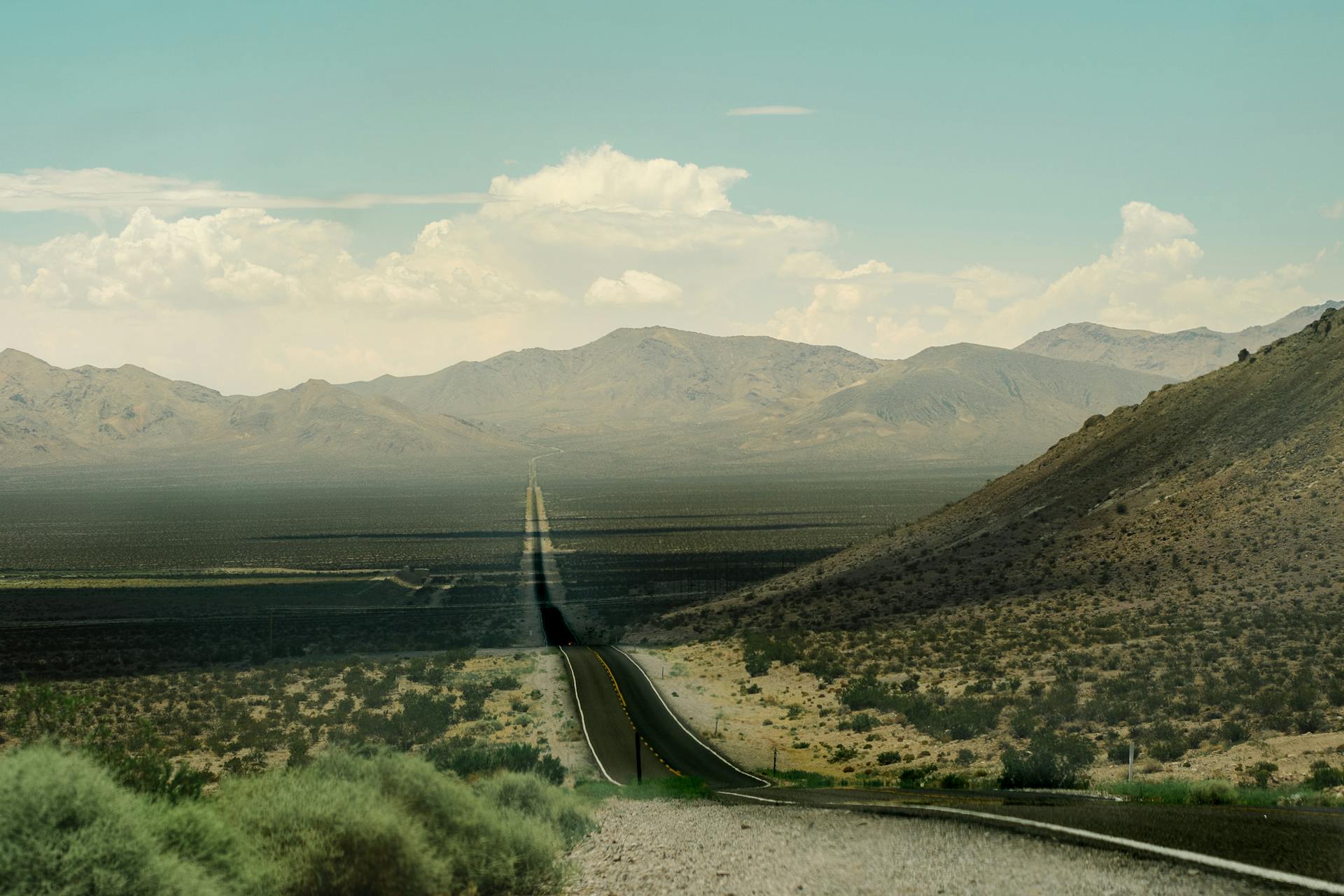
Every image in your batch gets the same treatment: identical dimensions and visual detail at sensible quality levels, with only the file size dropping. Move your cursor across the image to compare.
 Compressed
 Original
Both sides show the same photo. At quality 80, a typical batch shrinks by 50 to 80 percent with no visible difference at normal viewing sizes.
Batch Compression Without the Busywork
Do the math on one-at-a-time compression: 60 images at roughly 30 seconds each of uploading, adjusting, and downloading is half an hour of pure clicking. The Bulk Image Compressor collapses that into one drag, one settings panel, and one ZIP. It accepts up to 100 files per batch, up to 100MB each, and handles 13+ input formats including JPG, PNG, WebP, GIF, BMP, ICO, SVG, AVIF, TIFF, HEIC, and camera RAW variants like DNG, CR2, NEF, and ARW.
Everything runs on your own device using the browser's Canvas engine, the same approach behind every tool in our Image Compression collection. That matters twice over for batches: privacy, because 100 personal photos never touch a server, and speed, because there is no upload wait before compression even starts. Re-encoding also strips EXIF metadata after baking in the correct orientation, so the ZIP you share is lighter and does not leak camera details or GPS locations.
Bulk Compressor vs Single-Image Compressors
| Aspect | Bulk Image Compressor | Single-Image Compressors |
|---|---|---|
| Files per session | Up to 100 in one batch | One at a time |
| Mixed formats together | ✓ 13+ formats in one queue | ✗ One format per tool |
| Settings | Applied once to the whole batch | Tuned per image |
| Download | Single ZIP with everything | Individual file downloads |
| Exact KB targets | ✗ Quality-based only | ✓ Size tools hit exact limits |
| Format-specific tuning | General settings for all | Deep control per format |
| Animated GIF support | ✗ First frame only | ✓ GIF tool keeps animation |
| Best for | Albums, catalogs, site migrations | Hero images, forms, fine-tuning |
The two approaches complement each other. Batch work belongs here; precision work belongs in the dedicated tools. If a batch result is not quite right for one specific image, just run that one image through its format tool, like the PNG Compressor for lossless transparency work or the GIF Compressor when the animation must survive.
When the Bulk Compressor Is the Right Tool
Website Migrations & Redesigns
An old media library full of 3MB uploads is the most common cause of a slow site. Batch-compress the whole folder before re-uploading and watch page speed jump.
E-commerce Catalogs
Product listings need dozens of shots per upload cycle. Compress a full catalog at consistent quality, with an optional resize to your marketplace's preferred dimensions.
Photo Album Delivery
Photographers and families sharing events can shrink hundreds of megabytes of phone HEIC photos and camera files into an email-friendly, WhatsApp-friendly ZIP.
Document & Scan Batches
Scanned certificates, ID proofs, and paperwork sets compress beautifully in bulk before archiving or attaching, cutting storage and upload times dramatically.
When a Single-Image Tool Is the Better Choice
Hitting an Exact KB Limit
Government portals and job applications demand exact sizes. Use Compress to 50KB, 20KB, or 100KB, which auto-adjust quality until the file fits.
Fine-Tuning One Hero Image
A homepage banner deserves individual attention. The JPG and WebP compressors let you preview and nudge quality for that single important file.
Animated GIFs
The bulk tool keeps only the first frame of animated GIFs. When the animation itself matters, the dedicated GIF Compressor preserves motion while reducing size.
Vector-Aware SVG Work
SVGs in a bulk batch are rasterized. To keep true vector output with markup minification instead, run them through the dedicated SVG Compressor.
Key Benefits of Batch Compression
Minutes Instead of an Afternoon
One settings pass covers the whole queue. A 60-image batch that would take 30 minutes one-by-one finishes in a couple of minutes, including the ZIP.
Consistent Quality Everywhere
Every image gets the identical quality setting, so a product grid or gallery looks uniform instead of a patchwork of different compression levels.
Privacy at Batch Scale
Uploading one photo to a random compression site is a risk. Uploading 100 is a much bigger one. Here, nothing leaves your device, ever.
Resize While You Compress
Downscaling is where the biggest savings live. Resize the whole batch by percentage, exact pixels, or presets like Full HD and Instagram Square in the same pass.
Everything the Bulk Compressor Includes
- Up to 100 files per batch, up to 100MB per file, mixed formats welcome
- 13+ input formats: JPG, PNG, WebP, GIF, BMP, ICO, SVG, AVIF, TIFF, HEIC, and RAW (DNG, CR2, CR3, NEF, ARW, ORF, RW2, RAF)
- Auto output mode keeps JPG, PNG, and WebP native and converts everything else sensibly
- Manual output override to force JPG, WebP, or PNG for the whole batch
- Quality slider from 1 to 100 for JPG and WebP output; PNG output stays lossless
- Optional batch resize: percentage scale, custom width and height with aspect lock, or 10 ready presets
- Live per-file progress with original size, compressed size, and percentage saved
- Single ZIP download built in-browser, plus individual file downloads and one-click re-compress
- EXIF metadata stripped after orientation is baked in, for smaller and more private files
- 100% client-side processing: no uploads, no accounts, no tracking, works offline once loaded
How to Compress Images in Bulk
-
Add your batch
Drag up to 100 images into the drop zone or click Select Files. The list fills with every file's name, format, and original size.
-
Choose quality and output
Leave quality at 80 for a safe default, or lower it for smaller files. Keep Auto output unless you specifically want everything as JPG, WebP, or PNG.
-
Optionally resize the batch
Open the Resize section to scale by percentage, enter custom dimensions with the aspect-ratio lock, or pick a preset like HD 720p or Instagram Portrait.
-
Compress and download
Click Compress All, watch the per-file savings roll in, then hit Download All as ZIP. Not happy? Adjust settings and Re-compress All without re-adding files.
Technical Notes & Honest Limitations
Auto keeps JPG, PNG, and WebP files in their original format so nothing changes unexpectedly. Every other input (TIFF, HEIC, RAW, BMP, ICO, SVG, AVIF, GIF) is converted to JPG, or to PNG when the image contains transparency that JPG would destroy. This guarantees a ZIP full of files that open everywhere, without you thinking about format compatibility per file.
These formats are decoded in your browser and saved as JPG or PNG; the tool never outputs TIFF, HEIC, or RAW. Multi-page TIFFs keep only the first page. For RAW files, the output is the high-quality preview JPEG your camera embedded in the file, not re-developed sensor data, so always keep your RAW masters for serious editing. This is the honest limit of browser-based processing.
Re-encoding first bakes the correct rotation into the pixels, then drops EXIF metadata including GPS coordinates and camera details. That means smaller files and better privacy. Occasionally an already heavily optimized file can come out larger at high quality settings; the tool flags these in amber so you can lower the quality, enable resizing, or simply keep the original for that file.
Because everything runs locally, your device's memory is the practical ceiling, which is why batches cap at 100 files of up to 100MB each. Very large batches on older phones may process slowly; splitting into two runs helps. Windows SmartScreen sometimes flags ZIPs generated in the browser simply because they were not downloaded from a server. That warning is normal for locally built files and safe to dismiss.
Real-World Use Cases
Bloggers Fixing Page Speed
Export the media library, batch-compress everything at quality 80 with a 1920px width cap, and re-upload. Core Web Vitals improve without touching a single article. Pair with the JPG to WebP converter for the pages that matter most.
Sellers Preparing Marketplace Listings
Shoot 50 product photos on a phone, drop the HEIC batch here, pick Instagram Square or a custom size, and get a uniform, lightweight set ready for any marketplace or your preferred format.
Families Sharing Event Photos
A wedding or festival folder of 500MB becomes a shareable ZIP a fraction of that size. EXIF stripping also removes location data before the photos travel through WhatsApp groups and email threads.
Applicants Preparing Document Sets
Compress scans of certificates and ID proofs together, then push any single file that must meet a portal's strict limit through Compress to 200KB or Compress to 25KB for an exact fit.
Related Image Tools
Built for Everyone in India
From a blogger fixing a slow site to a family sharing festival photos, anyone with more than a handful of images saves real time here.
Frequently Asked Questions
Each batch accepts up to 100 files, with a limit of 100MB per file. If you have more than 100 images, simply run a second batch after downloading the first ZIP. On older phones or laptops, very large batches may process slowly because everything runs in your device's memory, so splitting a heavy batch into two runs can feel faster.
The tool accepts JPG, PNG, WebP, GIF, BMP, ICO, SVG, AVIF, TIFF, HEIC, and HEIF, plus camera RAW formats including DNG, CR2, CR3, NEF, ARW, ORF, RW2, and RAF. You can mix any of these in a single batch. Output is always JPG, PNG, or WebP, chosen automatically in Auto mode or forced with the format tabs.
No. Every step, from decoding to compression to building the ZIP, happens locally in your browser using the Canvas API. There are no uploads, no network calls with your images, no accounts, and no tracking. This matters even more for batches: sharing one photo with a random website is a small risk, but sharing 100 personal photos is not one you should take.
Auto keeps JPG, PNG, and WebP files in their original format so nothing changes unexpectedly. Everything else, such as TIFF, HEIC, RAW, BMP, or SVG, is converted to JPG, or to PNG when the image has transparency that JPG cannot preserve. The result is a ZIP full of files that open on any device, without you deciding a format for each file.
Some images arrive already heavily optimized, so re-encoding them at a high quality setting can produce a slightly bigger file. The tool marks these results in amber so they are easy to spot. Your options: lower the quality slider and re-compress, enable a resize to reduce pixel dimensions, or just keep the original for those specific files. The rest of the batch is unaffected.
Yes. The tool first reads the EXIF orientation and bakes the correct rotation into the pixels, then strips the metadata block entirely. That removes GPS coordinates, camera model, and shooting details, which shrinks files further and protects your privacy before photos travel through WhatsApp groups, email, or public listings. If you need EXIF preserved for archival purposes, keep the originals as your masters.
Yes, and it is the single biggest lever for file size. The Resize section offers three modes: a percentage slider from 10 to 100 percent, custom width and height in pixels with an aspect-ratio lock, and 10 presets covering common needs like Thumbnail, HD 720p, Full HD, Instagram Square and Portrait, Twitter Header, Facebook Cover, and YouTube Thumbnail. The chosen resize applies to every image in the batch.
Only the first frame is kept; the animation does not survive bulk compression. This is an honest limitation of the batch pipeline, which treats every input as a still image. If you need to shrink a GIF while keeping its motion, use the dedicated GIF Compressor on this site instead, which reduces colors and frames while preserving the animation itself.
All three are decoded in the browser and saved as JPG or PNG; the tool never outputs these formats. Multi-page TIFFs keep only their first page. For RAW files, the output is the camera-embedded preview JPEG, not re-developed sensor data, so it is ideal for sharing and quick delivery but you should always keep your RAW masters for serious editing work.
Windows SmartScreen sometimes flags files that were generated inside the browser rather than downloaded from a web server, because they carry no publisher reputation. This is expected behavior for locally built ZIPs and does not indicate anything harmful; the archive contains only your own compressed images. You can safely keep the file. The same ZIP opens normally on Android, macOS, Linux, and iOS.
Yes, completely. There is no signup, no watermark, no daily limit, and no premium tier hiding the useful features. Because processing happens on your own device, we have no server costs per image, which is exactly why the tool can stay free at batch scale. Run as many batches as you like, whenever you like, on any device with a modern browser.
Other Tool Categories
Image Tools
Convert, compress, and resize images in multiple formats — JPG, PNG, WebP, ICO, and more.
Salary Calculators
Calculate in-hand salary, CTC breakup, tax deductions, and more for Indian employees.
Unit Converters
Convert length, weight, temperature, speed, volume, and 200+ measurement units instantly.
Text Tools
Count words, convert case, generate lorem ipsum, find & replace text, and more writing utilities.
Start Compressing in Bulk
Drop up to 100 images, set your quality once, and download one clean ZIP. Free, private, and entirely in your browser.
Compress Your Images in Bulk