Convert HEIC To PSD
Transform HEIC images to PSD format.
Convert multiple HEIC to PSD online at once.
Drag & Drop HEIC files here
or
Import a HEIC image directly from a public URL, Google Drive, or Dropbox.
Max file size: 100MB
ℹ️ PSD files are multi-layer format, but this converter creates a single-layer document.
Your images are processed securely. No files are uploaded or stored on our servers.
Convert HEIC to PSD online to bring your iPhone and iPad photos into Photoshop's native document format. HEIC (High Efficiency Image Container) is Apple's processed, space-saving format, but it is a flat image with limited flexibility and poor compatibility with design tools. Converting to PSD produces a document you can open in Adobe Photoshop, GIMP, Affinity Photo, and Photopea - ready for layer-based editing, masking, and advanced design work.
Honest note: the output PSD contains a single flattened base layer - it is not a multi-layer Photoshop file. You add more layers, adjustment layers, and masks after opening it in your editor. If you need the reverse direction, use our PSD to HEIC converter. For a standard, shareable image, try HEIC to JPG, or shrink large photos with our HEIC compressor. Simply upload your HEIC files, convert them locally in your browser, and download the PSDs in seconds.
Lightning Fast
Convert images in seconds with our optimized engine that runs entirely in your browser - no uploads, no waiting.
Privacy First
No account needed. No data uploaded to servers. Your files stay on your device, processed locally in your browser.
Batch Processing
Convert multiple HEIC images at once with a single click. Download results individually or as a ZIP archive.
Pro Quality
Professional-grade conversion engine that handles large HEIC files reliably with accurate color and detail.
How It Works
Convert your HEIC images to PSD in 4 simple steps. No sign-up required, no software to install.
Upload Your Images
Click to select or drag and drop your HEIC files. You can also import from URL, Google Drive, or Dropbox.
Choose Settings
Pick PSD as your output format and adjust any available options to match your needs before converting.
Convert Instantly
Processing happens entirely in your browser. No uploads, no server-side processing. 100% local and private.
Download Results
Get your converted PSD files individually or download all at once as a ZIP file. Ready in seconds.
Same Image, Different Format
Our converter preserves your image faithfully. Move your cursor across the image to compare - the visual output stays the same. Only the format changes.
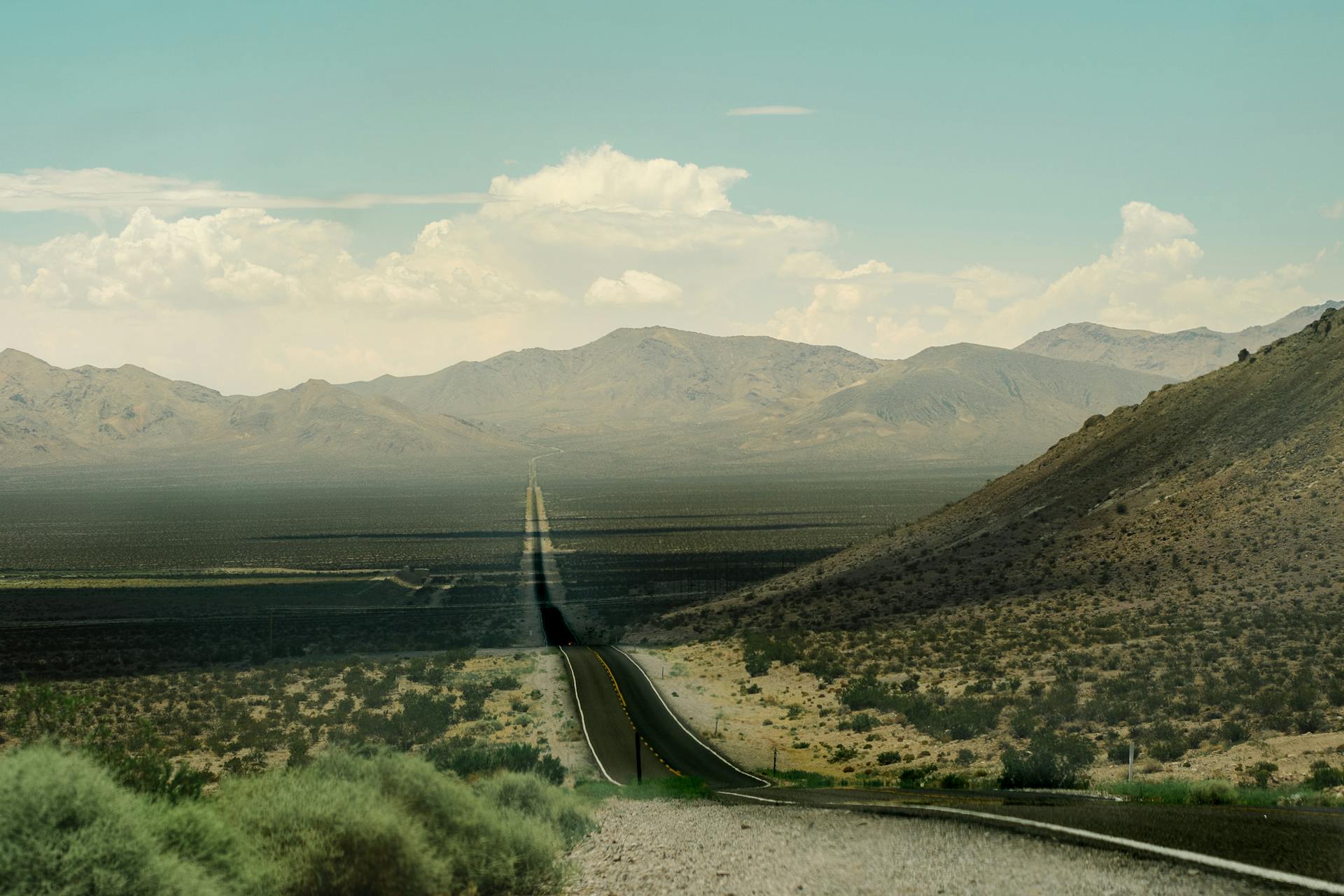
Converting HEIC to PSD repackages your photo into Photoshop's editable format with a single flattened base layer. The visual is unchanged - PSD simply opens the door to layers, masks, and non-destructive editing once you open it in your editor.
Convert HEIC to PSD Online - Free & Editable
Easily convert your HEIC photos into PSD (Photoshop Document) format - right in your browser. HEIC is the default on modern iPhones, but it is a flat format that design tools handle poorly. PSD is Photoshop's native format, opening the door to layers, masks, and non-destructive editing. Note: the converted PSD contains a single flattened base layer; additional layers are added after you open it in an editor. If you need the reverse conversion, use our PSD to HEIC converter. For a standard image, try HEIC to JPG. This free HEIC to PSD converter is built for designers and photo editors working with iPhone images.
⚖️ HEIC vs PSD - Quick Comparison
| Feature | HEIC (High Efficiency Image Container) | PSD (Photoshop Document) |
|---|---|---|
| Editability | Limited (flat photo) | ✓ Advanced |
| Layer Support | ✗ No | ✓ Fully supported |
| Design Tool Support | ✗ Poor | ✓ Native |
| Transparency | Yes | ✓ Fully controllable |
| File Size | ✓ Small | ✗ Large |
| Best For | iPhone storage | Design & editing workflows |
In practice, HEIC is the better choice as a compact, finalized photo on Apple devices, where it stores great quality in little space. PSD is the better choice when you want to edit an iPhone photo in a layered, non-destructive way: it is Photoshop's native format, supporting layers, masks, blending modes, and adjustment layers. Converting HEIC to PSD gives you an editable base to build on, and it solves HEIC's poor support in design tools. Be aware of one honest limitation: the converted PSD contains a single flattened base layer - it is not a pre-built multi-layer file. You add the extra layers, masks, and adjustments yourself once it is open in Photoshop, GIMP, Affinity Photo, or Photopea. The natural workflow is to start from your iPhone HEIC, convert to PSD, then build your layered project. For a simple shareable image instead, convert HEIC to HEIC to JPG, and shrink heavy photos with our HEIC compressor.
🎯 When to Use PSD
PSD is the right target when you want to edit your iPhone photo in a layered, non-destructive way. Here are the most common scenarios:
Layer-Based Editing
PSD lets you build your image in independent layers, editing elements separately. Converting an iPhone HEIC to PSD gives you a base layer to start adding text, graphics, and adjustments on top of.
Masking & Compositing
Photoshop's masks and blending modes enable sophisticated compositing. Bringing your HEIC into a PSD opens up non-destructive masking and creative layering that a flat photo cannot offer.
Non-Destructive Workflows
With adjustment layers in a PSD, you can change color, contrast, and effects without permanently altering the original pixels. This protects your iPhone photo while you experiment freely.
Professional Design Handoff
PSD is the industry-standard format for design collaboration. Converting an iPhone HEIC to PSD makes it easy to hand the image to designers who work natively in Photoshop and compatible editors.
For a simple, shareable image rather than an editable project, convert HEIC to HEIC to JPG or HEIC to PNG instead. To shrink large photos before converting, use our HEIC compressor, or explore the full suite at our image tools hub.
🍎 When to Keep HEIC Instead
PSD is for editing, not for everything. For many uses HEIC is better. Knowing when not to convert keeps things simple:
Storage Efficiency
HEIC is extremely space-efficient, while PSD files are large. If a photo is staying on your iPhone or in iCloud as a finished image, keep the compact HEIC rather than a heavy PSD.
Simple Sharing
PSD files are large and need Photoshop-compatible software to open. For sharing a photo with someone who just needs to view it, convert your HEIC to HEIC to JPG or HEIC to PNG instead of a heavy PSD.
Web Images
Browsers cannot display PSD at all. For any web use, convert your HEIC to HEIC to JPG, HEIC to PNG, or WebP - PSD is strictly for editing in design software, never for direct web display.
Apple Photos Editing
If light edits in Apple Photos are all you need, HEIC already works well there. Convert to PSD only when you need advanced, layered editing that the Photos app cannot provide.
Need other formats from your HEIC? Convert to HEIC to PDF to combine photos into a document, to HEIC to TIFF for archival, or to HEIC to JPG for a quick shareable image.
💎 Key benefits / Why convert HEIC to PSD
Layer-Ready Base
Get an editable PSD base from your iPhone HEIC, ready for you to add layers, text, and graphics in Photoshop or a compatible editor - the starting point for any layered design project.
Advanced Editing
PSD unlocks masks, blending modes, and adjustment layers for non-destructive, professional editing that a flat HEIC photo cannot provide on its own.
Industry-Standard Format
PSD is the universal language of professional design. Converting from HEIC makes your iPhone photo easy to hand off to designers working in Photoshop, GIMP, Affinity, or Photopea.
Transparency Control
PSD gives you full control over transparency and effects. For a simple flat image instead, see HEIC to JPG; keep iPhone photos compact with our HEIC compressor.
⚙️ Features of this tool
- ✓ Convert single or multiple HEIC files at once - batch processing supported
- ✓ Produces an editable PSD with a flattened base layer to build on
- ✓ Decodes Apple HEIC/HEIF photos directly in your browser
-
✓
Canvas-based PSD generation via fast browser-native APIs - ✓ Compatible with Photoshop, GIMP, Affinity Photo, and Photopea
- ✓ Transparency preserved from HEIC into the PSD base layer where present
- ✓ Batch ZIP download: all converted PSDs bundled into a single archive
- ✓ Works on all modern browsers - Chrome, Edge, Firefox, Safari
- ✓ Mobile-friendly: responsive on phones, tablets, and desktops
- ✓ Client-side only: all data stays in your browser. No server uploads, ever
📋 How to use (step-by-step)
-
Select your HEIC files
Click "Select File" or drag files directly into the drop zone. You can also import from
URL,Google Drive, orDropbox. - Choose PSD output Select PSD as your output format and adjust any available options before converting.
- Convert your files Click "Convert" to start. Each file is processed locally in your browser with real-time progress. Conversion takes only seconds.
-
Download your files
Download each PSD individually, or grab everything at once in a single
.ziparchive. - Convert more anytime Process as many HEIC files as you like - there are no limits, no watermarks, and nothing is ever uploaded to a server.
🔧 Technical notes (what to expect)
The output PSD contains a single flattened base layer. This is not a multi-layer PSD. Additional layers, adjustment layers, and masks can be added in Photoshop, GIMP, Affinity Photo, or Photopea after opening the converted file.
HEIC is Apple's HEVC-based format. This tool decodes it directly in your browser, so you can create a PSD from iPhone photos even on Windows and Android. An up-to-date browser gives the most reliable decoding.
If your HEIC source contains an alpha channel, transparency is preserved into the PSD base layer. A fully opaque photo produces an opaque base layer. You can refine transparency and masking once the file is open in your editor.
PSD output and high-resolution iPhone photos are memory-intensive. Large batches may strain browser memory. If conversion stalls, process fewer files at a time or use a device with more RAM. Everything runs locally.
💡 Use cases / Examples
Designers converting iPhone HEIC photos into PSD to begin a layered project in Photoshop - adding text, effects, and adjustment layers on top of the converted base layer.
Photo editors moving iPhone shots into PSD for non-destructive retouching and masking in Photoshop or Affinity Photo, while keeping the compact HEIC originals on their device.
Creative teams handing off iPhone images in the industry-standard PSD format so collaborators can edit natively, then exporting HEIC to JPG or HEIC to PDF versions for final delivery.
Editors building composites from an iPhone HEIC base in Photopea or GIMP, then compressing the exported result for web and social sharing once the design is complete.
🔗 Related Image Tools
This converter is part of our complete image tools suite. Here are the tools most commonly used alongside HEIC to PSD conversion:
Built for Everyone in India
Whether you're moving iPhone photos to other devices, editing, or just need a quick format swap - this tool is for you.
FAQs - HEIC To PSD Converter
Can I fully edit PSD files converted from HEIC?
▼Yes. The converted PSD opens in Adobe Photoshop and compatible editors like GIMP, Affinity Photo, and Photopea, where you can edit it with full layer-based tools. The conversion gives you a clean base layer in Photoshop's native format, and from there you can add new layers, masks, adjustment layers, text, and effects. So while the file starts as a single flattened layer, it becomes fully editable the moment you open it and begin building your project from your iPhone photo.
Does converting HEIC to PSD improve image quality?
▼No. The conversion does not add new image detail - it decodes your HEIC and repackages it into Photoshop's editable PSD format while preserving the existing quality. What it gives you is not better pixels but greater control: the ability to work in layers, apply masks, use adjustment layers, and edit non-destructively. Think of PSD as unlocking editing flexibility rather than enhancing the image. For the most space-efficient copies, keep your HEIC originals alongside the PSD.
Are layers automatically created during conversion?
▼No. Typically, the iPhone photo is placed into a single flattened base layer in the PSD. The converter does not automatically separate your image into multiple layers, because the layer structure of a design is a creative decision. Once you open the PSD in Photoshop, GIMP, Affinity Photo, or Photopea, you can create as many additional layers, adjustment layers, and masks as your project requires, building your layered composition on top of the base layer.
Does this tool upload my iPhone photos to a server?
▼No. All conversion happens entirely in your browser using client-side JavaScript. Your HEIC photos never leave your device - nothing is uploaded, transmitted, or stored anywhere. This keeps your personal images completely private, and the tool works even offline once the page has loaded. There is zero data collection involved in converting your HEIC files into editable PSD documents.
Will transparency be preserved when I convert HEIC to PSD?
▼Yes. If your HEIC source contains an alpha channel, the transparency carries through into the PSD base layer, so transparent areas remain transparent. A fully opaque photo produces an opaque base layer. Once the file is open in your editor, you have complete control over transparency, masking, and opacity, letting you refine or extend the transparent regions as your design requires using Photoshop's full set of masking tools.
Which software can open the converted PSD files?
▼The converted PSD files are compatible with Adobe Photoshop as well as many other editors, including GIMP, Affinity Photo, and the free browser-based Photopea. This broad compatibility means you do not necessarily need a Photoshop subscription to work with the file - you can open and edit it in free or alternative software. The PSD format is the industry standard, so almost every serious image editor supports it for working with your iPhone photos.
Can I convert HEIC to PSD on Windows or Android?
▼Yes. The tool decodes HEIC directly in your browser, so it works on Windows, Android, Mac, and iOS without any Apple software or special codec. Even on a non-Apple device that cannot open HEIC natively, you can convert iPhone photos into editable PSD documents. This is especially useful for designers on Windows PCs who receive HEIC images and need to bring them into Photoshop or another editor.
Can I convert multiple HEIC files to PSD at once?
▼Yes. Batch conversion is fully supported - select or drag in multiple HEIC photos and convert them all to PSD documents in a single operation, then download each individually or as a single ZIP archive. Because PSD output and iPhone photos are large, converting many at once is memory-intensive, so processing in smaller groups helps on devices with limited RAM. All processing happens privately in your browser.
Why are the PSD files large?
▼PSD is a professional editing format that stores full image data with room for layers and editing information, so the files are naturally large - far bigger than the compact HEIC source. This is expected and is the trade-off for the editing flexibility PSD provides. If you need a small file for sharing or the web rather than editing, convert your HEIC to JPG, PNG, or WebP instead, all of which produce far more compact files.
Is PSD suitable for sharing or web use?
▼No. PSD is an editing format, not a delivery format. It is large and requires Photoshop-compatible software to open, and browsers cannot display PSD at all. Use PSD strictly for design and editing work. When you are ready to share or publish, export your finished design from your editor to JPG, PNG, or WebP for sharing and the web, or to PDF for documents - keeping the PSD as your editable project file.
Is the HEIC to PSD converter completely free?
▼Yes, it is entirely free with no limits, no watermarks, no sign-up, and nothing to install. Convert as many HEIC photos to PSD as you like, whenever you like. Everything runs locally in your browser, so there are no server costs. It is part of our complete suite of free, privacy-first image tools, all designed to run instantly while keeping your iPhone photos securely on your own device, ready for editing in your design software of choice.
Other Tool Categories
Image Tools
Convert, compress, and resize images in multiple formats - JPG, PNG, WebP, ICO, and more.
Salary Calculators
Calculate in-hand salary, CTC breakup, tax deductions, and more for Indian employees.
Unit Converters
Convert length, weight, temperature, speed, volume, and 200+ measurement units instantly.
Text Tools
Count words, convert case, generate lorem ipsum, find & replace text, and more writing utilities.
Start Converting Images
Convert your HEIC photos to PSD documents - editable, private, and browser-based. No sign-up required.
🚀 Start Converting