Image Resizer - Resize Images Online by Pixels, Percentage or Preset
Resize one image or a whole batch by exact pixels, a percentage, or a ready-made preset. Everything runs entirely in your browser, so your images are never uploaded.
Drag & Drop your images here
or
Import from your computer, a public URL, Google Drive, or Dropbox.
JPG, PNG, WebP, GIF (first frame), BMP - up to 100MB per file, 100 files per batch
Fill one field and lock the ratio to auto-fill the other, or set both and pick a fit mode below.
Scales every image to this percentage of its own original size.
Contain fits the whole image inside your size with no crop. Cover fills the size and crops the overflow. Exact stretches to the size and may distort. Only applies when both width and height are set.
Keep saves each image in its own format. GIF and BMP are saved as PNG.
Applies to JPG and WebP only. PNG is lossless, so it has no quality setting.
JPG cannot store transparency. Transparent areas are filled with this colour when saving as JPG.
Enlarging beyond an image's original size cannot add detail the file does not contain, so upscaled results look softer. Saving a transparent PNG or WebP as JPG fills the transparent areas with your chosen background colour. PNG is lossless, so the quality slider does not affect it. GIFs keep only their first frame. Resizing re-encodes each image, which removes embedded metadata such as EXIF and GPS location - smaller files and more privacy. Need a target file size in KB instead of dimensions? Use our Compress Image to KB tool.
Everything is processed locally in your browser. Nothing is uploaded to our servers.
This free image resizer changes the pixel dimensions of your photos right inside your browser, by exact pixels, by percentage, or by a ready-made preset. Nothing is uploaded to a server. Every image is decoded, redrawn, and re-encoded on your own device, which is why a 40-photo batch finishes in seconds even on a slow connection and why your files never sit on someone else's hard drive.
Resizing is the tool you want when the pixel dimensions are wrong: a 6000 x 4000 camera photo that has to fit a 1200px blog column, a product shot that needs to be a clean 1080 x 1080 square, or a scanned document that a portal wants at 800px wide. If the dimensions are already correct and only the file weight is too heavy, you want the image compressor instead, which lowers quality rather than pixels. If a form gives you a hard size limit in kilobytes, the resize to KB tool shrinks dimensions until the file lands under your target. Need a different file type on the way out? The image converter collection covers every common format, and popular routes like JPG to PNG, PNG to JPG, and PNG to WebP each have their own page.
The tool reads EXIF orientation before it draws, so portrait photos from a phone stay upright instead of flipping sideways, a bug that trips up a surprising number of online resizers. You can lock the aspect ratio and fill in only the width, let the height follow automatically, and keep every photo in a mixed batch correctly proportioned. Or unlock it, set both numbers, and choose whether the image should fit inside the box, fill and crop, or stretch exactly. Related dimension tools in this group include the crop image tool, the aspect ratio calculator, and the DPI changer for print work. Browse everything under image resize and DPI tools or the full image tools hub.
Nothing Leaves Your Device
Images are decoded and redrawn in your own browser. There is no upload step, no queue, and no server copy to delete later.
Pixels, Percentage or Preset
Type exact dimensions, scale everything to a percentage of its own size, or tap a preset like Full HD, 720p, or a square.
EXIF Rotation Handled
Phone photos carry a hidden orientation flag. The resizer reads it and bakes in the correct rotation, so nothing arrives sideways.
Batch Work With One ZIP
Drop up to 100 images at once, resize them with the same settings, then pull everything down in a single ZIP file.
How to Resize an Image
Four steps from a folder of oversized photos to correctly sized files, without uploading anything.
Add Your Images
Drag files onto the drop zone or use the Select Images button. You can also import by public URL, from Google Drive, or from Dropbox.
Pick a Resize Method
Choose Pixels for exact numbers, Percentage to scale each image relative to its own size, or Preset for common dimensions.
Set Fit and Format
With both width and height filled, pick Contain, Cover, or Exact. Optionally force JPG, PNG, or WebP output and set quality.
Resize and Download
Press Resize Images. Each row shows the new dimensions and size change. Save one by one, or grab the batch as a ZIP.
Resized Output, Side by Side
Move your cursor across the image to compare. Resizing changes pixel dimensions using high-quality smoothing, so a downscaled photo stays clean and sharp at its new size.
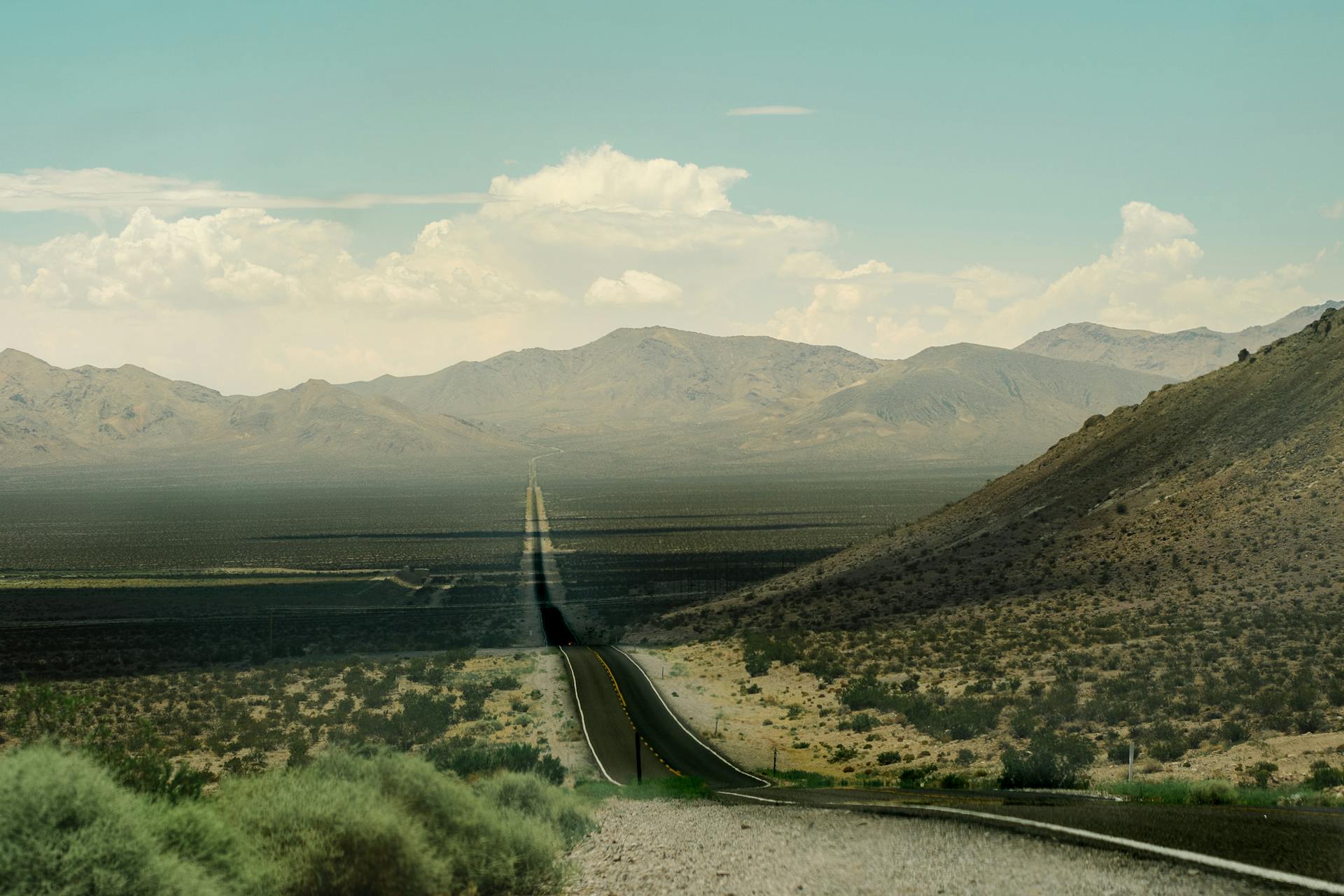

Downscaling discards pixels and looks clean. Upscaling cannot invent detail that was never captured, so enlarged images always look softer than the original. If you need a bigger image, start from the highest-resolution file you have rather than enlarging a small one.
A Complete Guide to the Image Resizer
Every image is a grid of pixels. A photo described as 4000 x 3000 has four thousand pixels across and three thousand down, twelve million in total. Resizing rebuilds that grid at a different count, and understanding which direction you are going explains almost everything about the result you will get.
Going down means the browser samples the original pixels and averages them into fewer output pixels, which is why downscaling looks clean. Going up means it has to invent pixels that were never captured, which is why enlarging always looks softer no matter which tool you use. If your source is a 300px thumbnail and you need a 2000px banner, no resizer on the internet can recover the missing detail, and you are better off finding the original file. This tool is honest about that: it flags upscales in the results list rather than pretending the output matches a native high-resolution image.
Resizing is also frequently confused with compression, and the two solve genuinely different problems. Resizing changes how many pixels exist. Compression changes how much data is used to store them. A 4000px photo saved at low quality can weigh less than an 800px photo saved at maximum quality. If a website loads slowly because images are physically enormous, resize. If dimensions are already right but files are heavy, use the image compressor. If a government portal demands "under 200KB", the resize to KB tool combines both approaches to hit the number.
📊 Resize Modes Compared
| Setting | Watch Out For | Best For |
|---|---|---|
| Pixels (locked) | Height varies across a mixed batch | ✓ Blog images, mixed shapes |
| Pixels (unlocked) | ✕ Distorts without a fit mode | ✓ Fixed layout slots |
| Percentage | Output dimensions differ per file | ✓ Equal reduction across a batch |
| Preset | Odd ratios need Contain or Cover | ✓ Wallpapers, video frames |
| Contain | One side may fall short of the box | ✓ Keeping the whole picture |
| Cover | ✕ Crops the edges away | ✓ Square avatars, uniform grids |
| Exact | ✕ Visibly stretches faces and text | Only when the ratio already matches |
| Quality slider | ✕ No effect on PNG | ✓ Smaller JPG and WebP files |
The three fit modes only come into play when both width and height are set. With the aspect ratio locked and a single dimension filled in, there is nothing to reconcile, so the fit selector is inactive. This is the part most people get wrong: they set 1080 x 1080 on a rectangular photo, leave the mode on Exact, and wonder why everyone looks stretched. Cover is almost always what you actually wanted. If you need to choose the cropped region yourself instead of centre-cropping, use the crop image tool.
✅ When Resizing Is the Right Fix
Pages Load Slowly
Serving a 4000px photo into an 800px column forces visitors to download roughly twenty-five times more pixel data than the layout displays. Resizing to the real display width is the biggest image speed win available.
An Upload Form Rejects the File
Job portals and exam applications enforce both a dimension range and a weight limit. Resize to bring the pixel count into range first, then use the passport photo tool for standard document sizes.
Images Must Match Each Other
Product grids and team pages look broken when thumbnails are different shapes. Setting both dimensions with Cover crops every image to an identical footprint, so the grid lines up no matter the originals.
You Need a Specific Platform Size
Wallpapers, video thumbnails, and print layouts have expected dimensions. Presets cover the common ones, and the aspect ratio calculator works out the matching second number for any custom width.
⚠️ When to Leave the Original Alone
The File Is Only Too Heavy
If dimensions already suit the layout, resizing throws away detail you did not need to lose. Reach for the JPG compressor or PNG compressor instead and keep the pixels.
You Are Printing the Image
Print needs pixels far more than screens do. A photo that looks generous on a monitor can print poorly across paper. Leave print masters full size and adjust density with the DPI changer.
It Is Your Only Copy
Resizing down is destructive. Discarded pixels cannot be recovered by enlarging afterwards. Always keep the original somewhere and treat resized output as a derivative made for one specific purpose.
You Only Want Part of the Picture
If the real goal is removing a distracting background, resizing shrinks the whole image including the parts you dislike. The crop image tool lets you choose the region deliberately.
💎 Key Benefits
Genuine Privacy
Because processing happens locally, ID scans and private photos never travel across a network. That applies to every tool in the image tools collection.
Metadata Is Dropped
Re-encoding strips EXIF data including GPS coordinates and timestamps. Use the EXIF viewer to inspect what a file carries before you share it.
Real Batch Throughput
Up to a hundred images share one set of settings and return in a single ZIP. For heavier mixed batches, the bulk image compressor works the same local-only way.
Format Change Included
Resize and convert in one pass by overriding the output format. If conversion is the whole job, see JPG to WebP or WebP to JPG.
📝 Features Checklist
- ✓ Resize by exact pixels, by percentage from 10% to 300%, or by preset
- ✓ Aspect ratio lock that auto-fills the second dimension as you type
- ✓ Contain, Cover, and Exact fit modes for when both dimensions are set
- ✓ EXIF orientation read and applied before drawing, so nothing rotates wrongly
- ✓ Output format override to JPG, PNG, or WebP, or keep each source format
- ✓ Quality slider from 1 to 100 for JPG and WebP encoding
- ✓ Background colour picker that fills transparency when saving as JPG
- ✓ Batches of up to 100 files, each up to 100MB, with per-file progress
- ✓ Per-image size comparison showing whether the file grew or shrank
- ✓ One-click ZIP download for the whole batch, built entirely in the browser
🪜 Step by Step
- Load your files Drag images onto the drop zone or use the split button to import from your computer, a public URL, Google Drive, or Dropbox. JPG, PNG, WebP, GIF, and BMP are all accepted.
- Choose how to size them Pixels gives exact control, Percentage scales relative to each original, Preset applies a standard size. With Pixels and the lock enabled, fill in only width and let height follow.
- Handle ratio mismatches If you set both dimensions, pick a fit mode. Contain keeps everything visible, Cover fills and crops the excess, Exact stretches. Choose Cover for uniform square grids.
- Resize, check, download Press Resize Images and review the new dimensions and size change on each row. Download individually, or take the whole batch as one ZIP file.
🔧 Technical Notes
Resizing happens through the browser's own 2D drawing surface. Each image is decoded, drawn into an off-screen canvas at the target dimensions with high-quality smoothing enabled, then re-encoded. The behaviour of that redraw is defined by the MDN Canvas API documentation, which is also where the image smoothing settings used here are specified. Because the whole pipeline is a browser standard, results are consistent across Chrome, Edge, Firefox, and Safari without any plugin or server component.
Upscaling asks the browser to produce pixels that do not exist in the source. It fills the gaps by interpolating between neighbouring pixels, which produces smooth but invented detail. Edges lose crispness and fine texture turns mushy. No browser tool, and no server tool without a trained AI model, can reverse this. If you need a genuinely larger image, go back to the highest-resolution original you have.
The JPG format has no alpha channel, so it cannot store transparency at all. When a transparent PNG or WebP is saved as JPG, every transparent pixel must become an opaque colour. The background colour picker controls that fill, defaulting to white. If you need transparency preserved, keep the output as PNG or WebP rather than forcing JPG.
Animated GIFs are read as a single still frame, the first one, because the canvas pipeline works on one frame at a time. Animation is not preserved. With the output format left on Keep, both GIF and BMP sources are written out as PNG, since PNG is the lossless format the browser can reliably encode. Choose an explicit output format if you want something different.
Individual files are capped at 100MB and batches at 100 images. There are also canvas limits: no single side beyond 32767 pixels and a total area ceiling. Requests past those limits are scaled down to fit rather than failing outright. Because everything runs in browser memory, a very large batch on a low-memory phone may be slower than the same job on a desktop.
🎯 Real Use Cases
Blog and website images. A content column is rarely wider than 800 to 1200 pixels. Resizing camera photos to that width before upload cuts page weight dramatically. Pair it with WebP conversion for a further reduction.
Online applications and exam forms. Indian portals commonly specify both a pixel range and a KB ceiling. Resize the dimensions first, then use the signature resize tool or resize to KB to meet the weight rule.
Product catalogues. Marketplaces expect square product images at a consistent size. Load the full shoot, set 1080 x 1080 with Cover, and the entire catalogue returns cropped to identical dimensions in one pass.
Email and messaging attachments. Mail providers cap attachment size, and a handful of modern phone photos will exceed it. Scaling a batch to 50% typically brings a folder well under the limit while staying readable.
🔗 Related Image Tools
Built for Everyone in India
From students uploading exam forms to developers shipping fast websites, resizing is the one image job almost everyone runs into.
FAQs - Image Resizer
What is the difference between resizing and compressing an image?
▼Resizing changes the pixel dimensions, meaning how many pixels wide and tall the image is. Compressing keeps the dimensions and reduces how much data is used to store each pixel. A large photo saved at low quality can weigh less than a small photo saved at maximum quality. Resize when the image is physically too big for its slot, and compress when the dimensions are already correct but the file is heavy.
Are my images uploaded to your server?
▼No. Every image is decoded, redrawn, and re-encoded inside your own browser using the Canvas API. There is no upload step and no server copy, which is why the tool keeps working even if your connection drops after the page loads. This matters most for sensitive files such as ID scans, bank documents, and medical images, since those never travel across a network at all.
Will resizing reduce my image quality?
▼Making an image smaller looks clean, because the browser averages existing pixels into fewer output pixels and detail is condensed rather than invented. Making an image larger always looks softer, since the missing pixels have to be interpolated from their neighbours. If you are downscaling you will rarely notice a difference. If you are upscaling, expect a visible loss of sharpness that no browser tool can avoid.
Why did my photo come out rotated the wrong way?
▼It should not, because this tool reads the EXIF orientation flag that phone cameras write into photo files and applies the correct rotation before drawing. Many resizers ignore that flag, which is why portrait photos sometimes appear sideways elsewhere. If you do hit an orientation problem, it usually means the file carries an unusual or damaged EXIF block, and re-saving the original from your gallery app first normally fixes it.
What do Contain, Cover, and Exact actually do?
▼They only apply when you have set both a width and a height. Contain scales the image so the whole picture fits inside your box, so one side may end up smaller than requested. Cover fills the box completely and centre-crops whatever overflows, which is what you want for square avatars and uniform grids. Exact stretches the image to precisely your numbers and will distort it if the ratio does not already match.
How many images can I resize at once?
▼Up to 100 files per batch, with each individual file capped at 100MB. All of them share the same settings, so it works best when the images need the same treatment. Once processing finishes you can download files individually or take the entire batch as a single ZIP. Very large batches on a low-memory phone may run slower than the same job on a desktop, since everything happens in browser memory.
Does the quality slider affect PNG files?
▼No. PNG is a lossless format, meaning it reconstructs every pixel exactly as it was, so there is no quality dial to turn. The slider only affects JPG and WebP output, both of which are lossy and let you trade fine detail for a smaller file. If your output format is set to PNG, or set to Keep with a PNG source, the slider is simply ignored.
What happens to transparent areas if I save as JPG?
▼The JPG format cannot store transparency at all, so every transparent pixel has to become a solid colour. The background colour picker controls what colour is used, and it defaults to white. If preserving transparency matters, choose PNG or WebP as your output format instead. This is a limitation of the JPG format itself rather than something specific to this tool.
Can I resize an animated GIF and keep the animation?
▼No. The tool reads only the first frame of an animated GIF, because the canvas pipeline works on one still frame at a time. The result is a single static image rather than an animation. If the output format is left on Keep, that frame is saved as PNG. Preserving animation requires a dedicated GIF editor that rebuilds every frame and the timing between them.
Does resizing remove EXIF and GPS data from my photos?
▼Yes. Re-encoding rebuilds the file from raw pixel data, and metadata such as EXIF camera details, timestamps, and GPS coordinates is not carried across. That is a genuine privacy benefit when posting photos publicly, since location data is often embedded without people realising. If you want to check what a file contains before or after, the EXIF viewer tool will show you the full metadata block.
Which sizes should I use for website images?
▼Match the widest point the image will ever be displayed at, then stop. Most content columns sit between 800 and 1200 pixels wide, so that is a sensible target for in-article images. Full-width hero banners usually need 1600 to 1920 pixels. Anything beyond the display width forces visitors to download pixel data their screen will never show, which slows the page down for no visual gain.
Other Tool Categories
Image Tools
Convert, compress, and resize images in multiple formats - JPG, PNG, WebP, ICO, and more.
Salary Calculators
Calculate in-hand salary, CTC breakup, tax deductions, and more for Indian employees.
Unit Converters
Convert length, weight, temperature, speed, volume, and 200+ measurement units instantly.
Text Tools
Count words, convert case, generate lorem ipsum, find & replace text, and more writing utilities.
Resize Your Images Right Now
No signup, no watermark, no upload. Set your dimensions, press one button, and download. Up to 100 images at a time, processed entirely on your own device.
Resize Images Free